# Joystick
Purpose Of This Page
This page explains how to read the CodyJoy Pro joystick using Python.
The CodyJoy Pro includes several built-in features, including:
- RGB LED Matrix.
- Joystick.
- Sound Maker.
This page focuses only on the joystick.
By the end of this page, students will be able to:
- Detect joystick direction.
- Detect joystick button clicks.
- Read all joystick states at once.
- Use joystick input inside a Python loop.
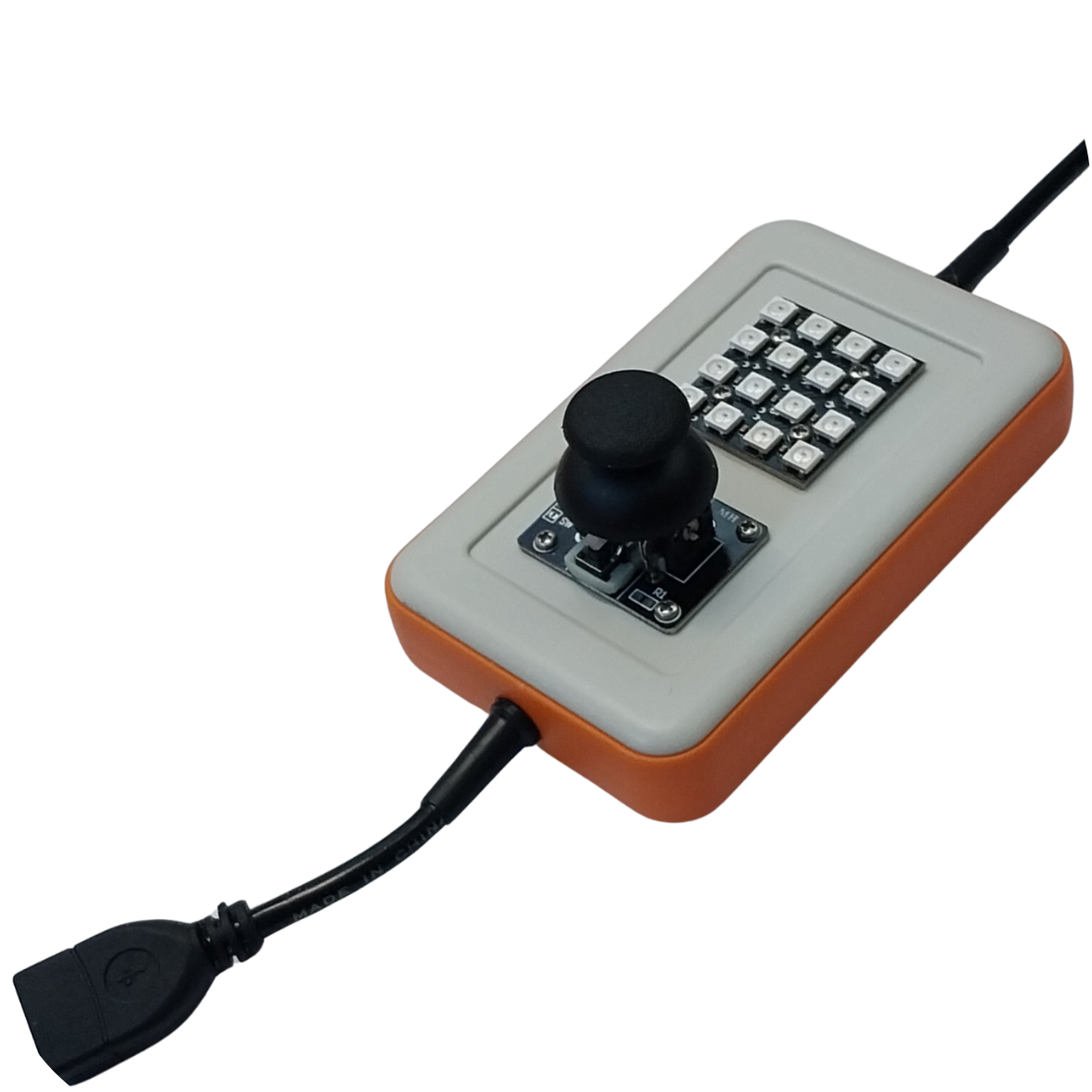
Figure 1 - CodyJoy Pro device. The board includes an RGB LED Matrix, joystick, and Sound Maker.
Start Code
Every CodyNick Python script should import the CodyNick library and connect to the CodyNick device.
```python
import CodyNick
cn = CodyNick.CN()
```
The variable `cn` represents the connected CodyNick device.
Joystick Directions
The joystick can be moved in four main directions:
- Up
- Down
- Left
- Right
The joystick can also be pressed like a button. This is called a click.
Check One Direction
Use `Joystick.position()` to check one direction.
Function format:
```python
CodyNick.Joystick.position(cn, direction)
```
The direction should be one of:
```python
"up"
"down"
"left"
"right"
```
Example:
```python
import CodyNick
cn = CodyNick.CN()
if CodyNick.Joystick.position(cn, "up"):
print("Joystick is up")
```
This prints a message if the joystick is moved up.
Check For A Click
Use `Joystick.click()` to check whether the joystick button is pressed.
Function format:
```python
CodyNick.Joystick.click(cn)
```
Example:
```python
import CodyNick
cn = CodyNick.CN()
if CodyNick.Joystick.click(cn):
print("Joystick clicked")
```
Read All Joystick States
Use `Joystick.states()` to read the current joystick state once.
Function format:
```python
CodyNick.Joystick.states(cn)
```
This returns a list.
Examples of possible results:
| Result | Meaning |
|---|---|
| `[]` | No direction or click |
| `["UP"]` | Joystick is moved up |
| `["DOWN"]` | Joystick is moved down |
| `["LEFT"]` | Joystick is moved left |
| `["RIGHT"]` | Joystick is moved right |
| `["CLICK"]` | Joystick button is pressed |
| `["UP", "CLICK"]` | Joystick is moved up and clicked |
Example:
```python
import CodyNick
cn = CodyNick.CN()
states = CodyNick.Joystick.states(cn)
print(states)
```
Example: Print Joystick Movement
This example continuously checks the joystick and prints the direction.
```python
import CodyNick
import time
cn = CodyNick.CN()
while True:
if CodyNick.Joystick.position(cn, "up"):
print("up")
if CodyNick.Joystick.position(cn, "down"):
print("down")
if CodyNick.Joystick.position(cn, "left"):
print("left")
if CodyNick.Joystick.position(cn, "right"):
print("right")
if CodyNick.Joystick.click(cn):
print("click")
time.sleep(0.1)
```
The `time.sleep(0.1)` line slows the loop down slightly. Without it, Python may print too many messages very quickly.
Example: Read Once Per Loop
For larger programs, it is often better to read the joystick once per loop using `states()`.
```python
import CodyNick
import time
cn = CodyNick.CN()
while True:
states = CodyNick.Joystick.states(cn)
if "UP" in states:
print("up")
elif "DOWN" in states:
print("down")
elif "LEFT" in states:
print("left")
elif "RIGHT" in states:
print("right")
elif "CLICK" in states:
print("click")
time.sleep(0.1)
```
This style is useful when one program needs to react to different joystick actions.
Example: Count Button Clicks
This example counts how many times the joystick button is clicked.
```python
import CodyNick
import time
cn = CodyNick.CN()
click_count = 0
was_clicked = False
while True:
is_clicked = CodyNick.Joystick.click(cn)
if is_clicked and not was_clicked:
click_count = click_count + 1
print("Clicks:", click_count)
was_clicked = is_clicked
time.sleep(0.05)
```
The variable `was_clicked` helps count one click at a time instead of counting the same press many times.
Function Summary
| Function | Purpose | Example |
|---|---|---|
| `Joystick.position(cn, "up")` | Check if joystick is up | `if Joystick.position(cn, "up"):` |
| `Joystick.position(cn, "down")` | Check if joystick is down | `if Joystick.position(cn, "down"):` |
| `Joystick.position(cn, "left")` | Check if joystick is left | `if Joystick.position(cn, "left"):` |
| `Joystick.position(cn, "right")` | Check if joystick is right | `if Joystick.position(cn, "right"):` |
| `Joystick.click(cn)` | Check if joystick button is pressed | `if Joystick.click(cn):` |
| `Joystick.states(cn)` | Read all joystick states once | `states = Joystick.states(cn)` |
Practice Tasks
Try these exercises:
1. Print `up` when the joystick is moved up.
2. Print all four directions when they happen.
3. Print `clicked` when the joystick button is pressed.
4. Count how many times the joystick is clicked.
5. Print the full list returned by `Joystick.states(cn)`.
6. Write a program that prints only when the direction changes.
Common Mistakes
Direction names must be lowercase when using `Joystick.position()`.
Correct:
```python
CodyNick.Joystick.position(cn, "up")
```
Not correct:
```python
CodyNick.Joystick.position(cn, "UP")
```
The result from `Joystick.states()` uses uppercase state names:
```python
states = CodyNick.Joystick.states(cn)
if "UP" in states:
print("up")
```
If the terminal prints too fast, add a short delay inside the loop:
```python
time.sleep(0.1)
```
Page summary:
The joystick can be read by checking one direction, checking for a click, or reading all current states at once. Use `Joystick.states(cn)` when a program needs to make several decisions from one joystick reading.