
Joystick
Purpose Of This Page
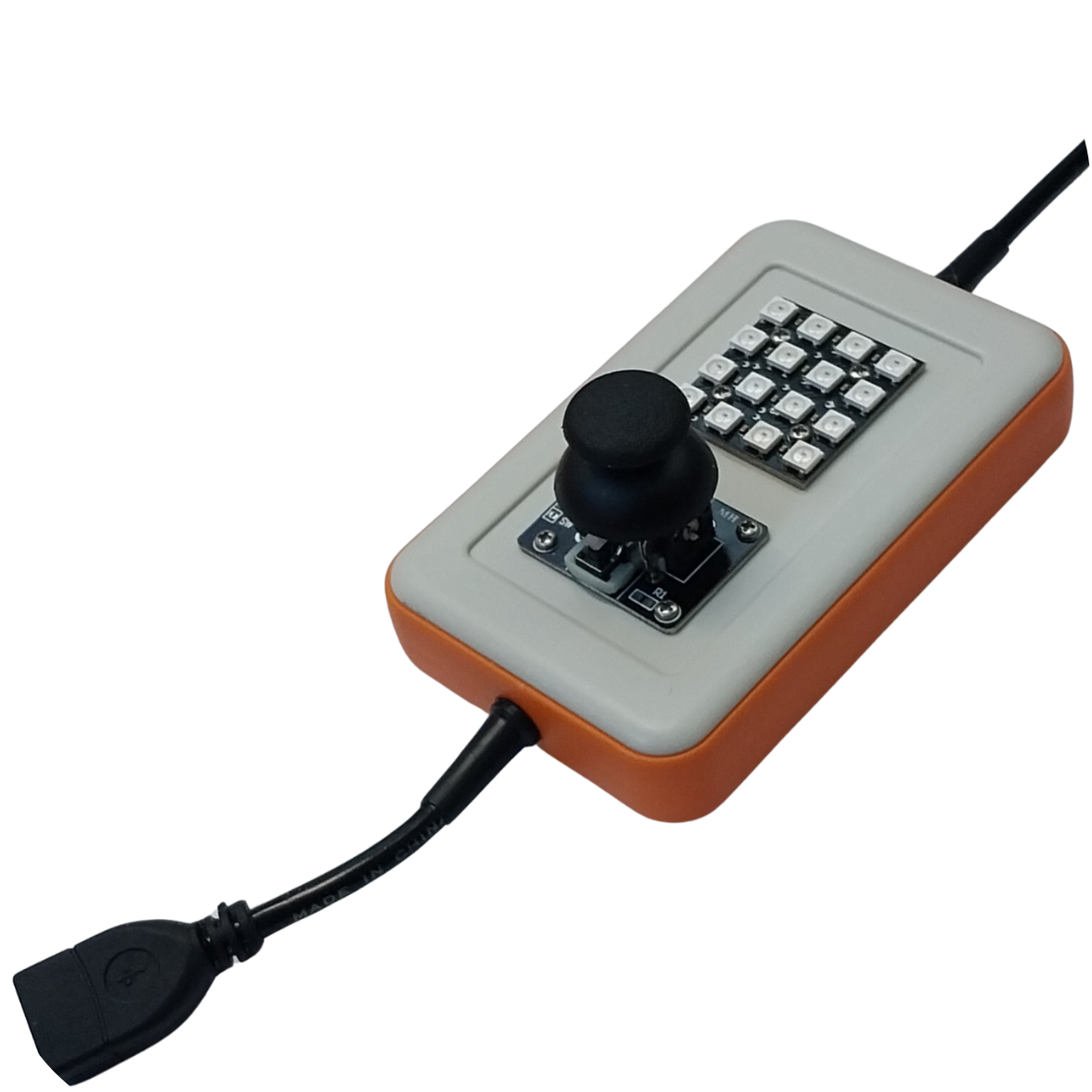
This page explains how to read the CodyJoy Pro joystick using Python.
The CodyJoy Pro includes several built-in features, including:
- RGB LED Matrix.
- Joystick.
- Sound Maker.
This page focuses only on the joystick.
By the end of this page, students will be able to:
- Detect joystick direction.
- Detect joystick button clicks.
- Read all joystick states at once.
- Use joystick input inside a Python loop.
Start Code
Every CodyNick Python script should import the CodyNick library and connect to the CodyNick device.
import CodyNick

cn = CodyNick.CN()
The variable cn represents the connected CodyNick device.
Joystick Directions
The joystick can be moved in four main directions:
- Up
- Down
- Left
- Right
The joystick can also be pressed like a button. This is called a click.
Check One Direction
Use Joystick.position() to check one direction.
Function format:
CodyNick.Joystick.position(cn, direction)
The direction should be one of:
"up"
"down"
"left"
"right"
Example:
import CodyNick

cn = CodyNick.CN()

if CodyNick.Joystick.position(cn, "up"):
    print("Joystick is up")
This prints a message if the joystick is moved up.
Check For A Click
Use Joystick.click() to check whether the joystick button is pressed.
Function format:
CodyNick.Joystick.click(cn)
Example:
import CodyNick

cn = CodyNick.CN()

if CodyNick.Joystick.click(cn):
    print("Joystick clicked")
Read All Joystick States
Use Joystick.states() to read the current joystick state once.
Function format:
CodyNick.Joystick.states(cn)
This returns a list.
Examples of possible results:
| Result | Meaning |
|---|---|
[] |
No direction or click |
["UP"] |
Joystick is moved up |
["DOWN"] |
Joystick is moved down |
["LEFT"] |
Joystick is moved left |
["RIGHT"] |
Joystick is moved right |
["CLICK"] |
Joystick button is pressed |
["UP", "CLICK"] |
Joystick is moved up and clicked |
Example:
import CodyNick

cn = CodyNick.CN()

states = CodyNick.Joystick.states(cn)
print(states)
Example: Print Joystick Movement
This example continuously checks the joystick and prints the direction.
import CodyNick
import time

cn = CodyNick.CN()

while True:
    if CodyNick.Joystick.position(cn, "up"):
        print("up")

    if CodyNick.Joystick.position(cn, "down"):
        print("down")

    if CodyNick.Joystick.position(cn, "left"):
        print("left")

    if CodyNick.Joystick.position(cn, "right"):
        print("right")

    if CodyNick.Joystick.click(cn):
        print("click")

    time.sleep(0.1)
The time.sleep(0.1) line slows the loop down slightly. Without it, Python may print too many messages very quickly.
Example: Read Once Per Loop
For larger programs, it is often better to read the joystick once per loop using states().
import CodyNick
import time

cn = CodyNick.CN()

while True:
    states = CodyNick.Joystick.states(cn)

    if "UP" in states:
        print("up")
    elif "DOWN" in states:
        print("down")
    elif "LEFT" in states:
        print("left")
    elif "RIGHT" in states:
        print("right")
    elif "CLICK" in states:
        print("click")

    time.sleep(0.1)
This style is useful when one program needs to react to different joystick actions.
Example: Count Button Clicks
This example counts how many times the joystick button is clicked.
import CodyNick
import time

cn = CodyNick.CN()

click_count = 0
was_clicked = False

while True:
    is_clicked = CodyNick.Joystick.click(cn)

    if is_clicked and not was_clicked:
        click_count = click_count + 1
        print("Clicks:", click_count)

    was_clicked = is_clicked
    time.sleep(0.05)
The variable was_clicked helps count one click at a time instead of counting the same press many times.
Function Summary
| Function | Purpose | Example |
|---|---|---|
Joystick.position(cn, "up") |
Check if joystick is up | if Joystick.position(cn, "up"): |
Joystick.position(cn, "down") |
Check if joystick is down | if Joystick.position(cn, "down"): |
Joystick.position(cn, "left") |
Check if joystick is left | if Joystick.position(cn, "left"): |
Joystick.position(cn, "right") |
Check if joystick is right | if Joystick.position(cn, "right"): |
Joystick.click(cn) |
Check if joystick button is pressed | if Joystick.click(cn): |
Joystick.states(cn) |
Read all joystick states once | states = Joystick.states(cn) |
Practice Tasks
Try these exercises:
- Print
upwhen the joystick is moved up. - Print all four directions when they happen.
- Print
clickedwhen the joystick button is pressed. - Count how many times the joystick is clicked.
- Print the full list returned by
Joystick.states(cn). - Write a program that prints only when the direction changes.
Common Mistakes
Direction names must be lowercase when using Joystick.position().
Correct:
CodyNick.Joystick.position(cn, "up")
Not correct:
CodyNick.Joystick.position(cn, "UP")
The result from Joystick.states() uses uppercase state names:
states = CodyNick.Joystick.states(cn)

if "UP" in states:
    print("up")
If the terminal prints too fast, add a short delay inside the loop:
time.sleep(0.1)
The joystick can be read by checking one direction, checking for a click, or reading all current states at once. Use `Joystick.states(cn)` when a program needs to make several decisions from one joystick reading.